Top 10 · Branching

Top 10 Branching PowerPoint Templates with Examples (2026)

Branching PowerPoint templates turn complex relationships into clear, scannable visuals — whether you're mapping a central strategy to supporting pillars, walking an audience through a multi-step process, or showing how one concept radiates into several outcomes. The right hub-and-spoke or radial layout does more than look good; it removes cognitive load and lets your message land faster than a bulleted slide ever could.

This list covers the 10 most-downloaded branching templates on PPT-Design, spanning 3-point to 10-point layouts, curved path flows, arrow banners, and sunburst diagrams. It's built for business professionals, project managers, consultants, and educators who need a polished diagram without starting from a blank slide.

When choosing, consider your spoke count first — too many branches crowd a slide, too few can feel thin. Also check whether the template uses editable SmartArt-style shapes or grouped vector objects, since that affects how easily you can recolor via the Format tab or swap icons inside the placeholder.

Free download Fully editable PowerPoint + Google Slides
1 2 3 4 5 6 7 8 9 10
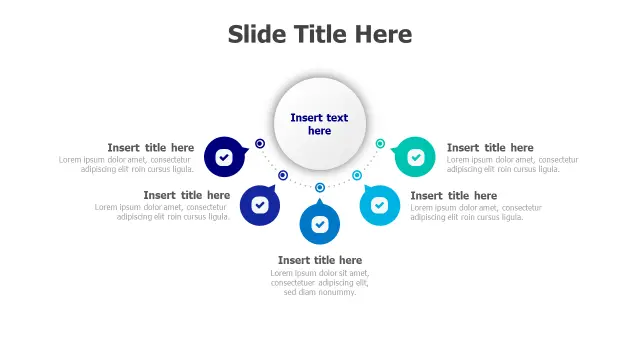
5-Point Central Hub Checklist Diagram
Free PowerPoint + Google Slides 2,609+ downloads

Pick this one when you need to track five deliverables or milestones against a single central objective — the checkmark icons reinforce completion status without adding extra slides. The blue-and-teal gradient palette reads well on both projected screens and exported PDFs.

The five satellite points sit at evenly spaced angles from the hub, so each spoke gets equal visual weight. Swap the checkmark icons via the Insert → Icons path if your brand uses a different symbol system.
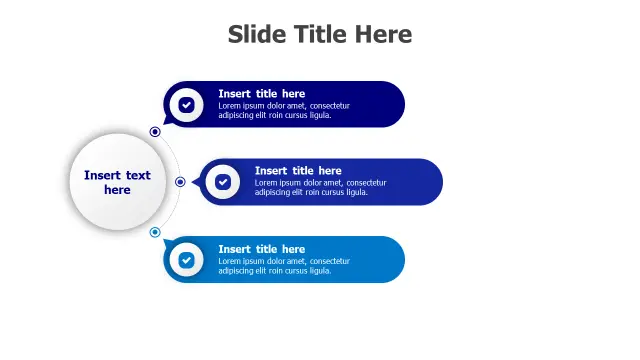
Three Point Circle Hub Infographic
Free PowerPoint + Google Slides 1,953+ downloads

Three-point layouts are underrated — they're ideal for "three reasons", "three benefits", or any classic tripartite argument without the visual noise of larger spoke counts. This template's expandable text boxes give you room for a short headline and a supporting sentence per point.

The central circle naturally draws the eye first, making it a strong choice for executive summaries where the core message must register before the supporting detail does.

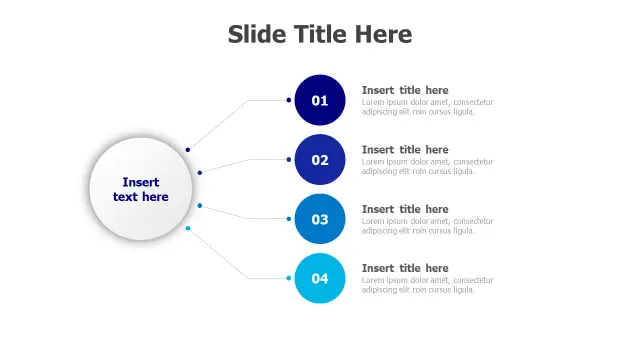
Central Hub Four Branch Connector
Free PowerPoint + Google Slides 1,553+ downloads

The dotted connector lines here signal relationship rather than sequence, which makes this template better suited to "core concept + four supporting pillars" narratives than to step-by-step process flows. Numbered sections help audiences follow along during live presentations.

Consultants presenting strategic frameworks will find the four-branch layout maps cleanly to common models like SWOT quadrants or four-pillar roadmaps without forcing a reformat.

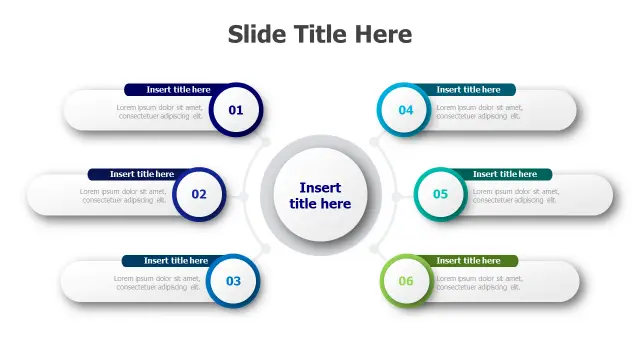
Six Point Hub Spoke Infographic Layout
Free PowerPoint + Google Slides 876+ downloads

Six spokes hit a sweet spot for service-offering slides and capability overviews — enough variety to feel comprehensive, not so many that labels get cramped. The circular number badges double as visual anchors if you plan to reference each point verbally during a walkthrough.

Because each spoke has a dedicated text area, you can use the slide as a standalone summary page or drill into each point across six follow-up slides using the same color coding for continuity.

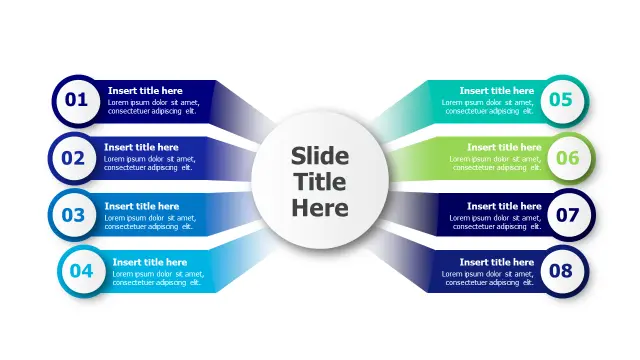
8-Point Radial Agenda Sunburst Layout
Free PowerPoint + Google Slides 784+ downloads

Eight color-coded segments make this the go-to choice for meeting agendas or project phase overviews where each topic needs equal emphasis and its own color identity. The sunburst structure also works well for annual report summaries covering multiple departments.

The gradient backgrounds across blue, teal, and complementary tones mean the slide holds visual interest without custom recoloring — though the Format → Shape Fill path makes per-segment color swaps straightforward if your brand palette differs.

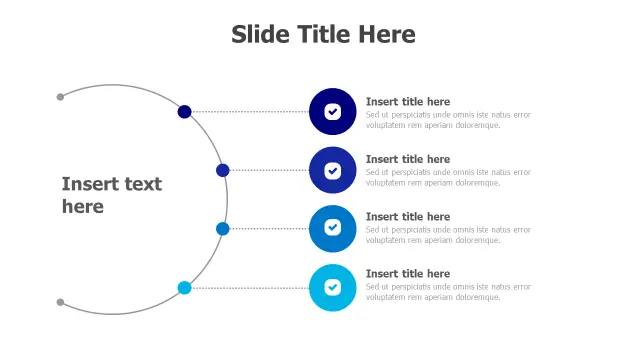
4-Step Curved Path Checklist Infographic
Free PowerPoint + Google Slides 523+ downloads

This is the only sequential template in the list — the flowing arc design signals left-to-right progression, so it suits onboarding steps, approval workflows, or any process where order matters. Checkmark icons reinforce task completion at each stage.

Choose this over a standard hub-and-spoke when your content has a clear start and end rather than a central concept with equal radiating elements. The curved path adds motion and guides the eye naturally through all four steps.

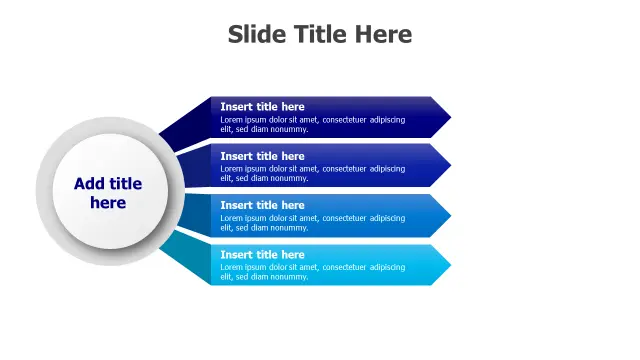
Central Hub Four Branch Arrow Diagram
Free PowerPoint + Google Slides 491+ downloads

Horizontal arrow banners give this four-branch layout a more corporate, report-style feel compared to radial alternatives. It's a strong pick for option-comparison slides or "four pillars of our approach" sections in sales decks where each branch needs a short, punchy label.

The arrow shapes visually suggest forward momentum, which suits strategy presentations. Recolor each banner independently via Shape Format → Shape Fill to align with existing deck themes.

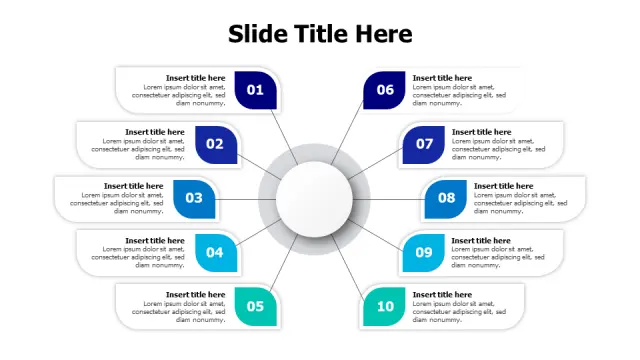
10-Point Circular Hub Infographic Layout
Free PowerPoint + Google Slides 481+ downloads

Ten labeled segments is a lot to fit on one slide, so this template earns its place when you genuinely have ten interconnected topics — think annual initiative overviews, comprehensive service catalogs, or curriculum maps. The numbered segments prevent the layout from feeling chaotic.

Use the central core area for your overarching theme or department name, and keep per-segment labels short — two to four words — so the slide remains readable at the back of a conference room.

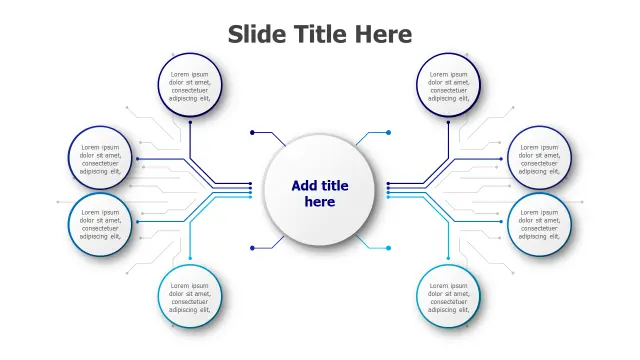
Central Hub 8-Point Branching Diagram
Free PowerPoint + Google Slides 420+ downloads

Eight symmetrically arranged circular nodes create a visually balanced diagram that works well for organizational structure slides or interconnected concept maps where no single node should appear more prominent than another.

Educators and project managers presenting team structures or interdependent workstreams will find the node-to-node symmetry easier to customize than a sunburst, since each node is an independent grouped shape rather than a segment of a single ring.

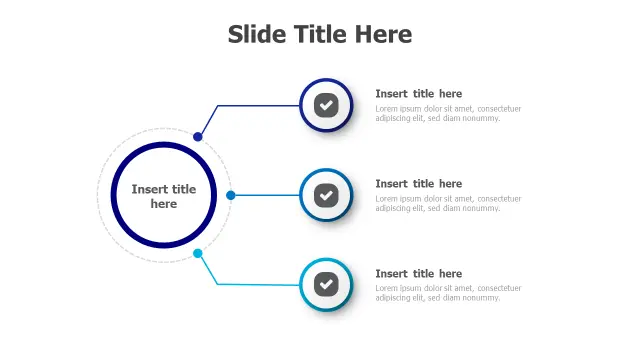
Central Hub Three Branch Diagram
Free PowerPoint + Google Slides 396+ downloads

Three-branch layouts keep slides focused, and this clean version is a reliable fallback when your message distills neatly into three points — core values, service tiers, or project phases. Checkmark icons and text placeholders are already in place, so editing time is minimal.

It pairs naturally with a title slide and a closing call-to-action, making it useful as the centrepiece of a short, three-idea pitch rather than a single slide inside a longer deck.

Frequently Asked Questions

What is a branching diagram in PowerPoint?

A branching diagram shows how a central idea connects to multiple related elements using lines, arrows, or spokes. In PowerPoint, these are built from grouped shapes — circles, arrows, and connectors — on a single slide layout.

How do I edit a hub-and-spoke template in PowerPoint?

Click any shape to select it, then use the Format tab to change fill color, outline, or effects. Double-click a text placeholder to edit labels. To move spokes, ungroup the objects first via Arrange → Ungroup, then reposition individually.

How many branches should a hub-and-spoke diagram have?

Three to six branches work best for most slides — enough to show variety without crowding. Eight or ten branches are readable only when labels are kept very short and the slide is viewed on a large screen or exported at high resolution.

What's the difference between a radial diagram and a branching diagram?

Radial diagrams radiate outward from a center point with equal angular spacing, like a sunburst. Branching diagrams can be asymmetrical, using directional arrows or tree structures. Both appear under branching templates but suit different content types.

Can I animate a branching diagram in PowerPoint?

Yes. Select each spoke or node group, then apply an Entrance animation — Wipe or Grow/Shrink work well — via the Animations tab. Set each element to trigger On Click or with a delay so the diagram builds progressively during your presentation.

Looking for more Branching templates?

Browse the full library of Branching PowerPoint and Google Slides templates — fully editable, free to download.

Browse all Branching templates