Top 10 · Comparison

Top 10 Comparison PowerPoint Templates with Examples (2026)

Comparison PowerPoint templates give your audience a clear visual framework for evaluating options, dissecting causes, or mapping interconnected factors — without burying them in bullet points. Whether you're presenting a product evaluation to a buying committee or walking a team through a root-cause analysis, the right layout does the analytical heavy lifting before you say a word.

This list covers the 10 most-downloaded comparison templates on PPT-Design, spanning hub-and-spoke diagrams, side-by-side charts, fishbone layouts, and dual-box formats. Each one suits a different comparison scenario, so the picks here are genuinely varied — not ten versions of the same two-column table.

When choosing, think about the number of items you're comparing and the relationship between them. Parallel options (Product A vs. B) call for symmetric layouts. Multi-cause or multi-factor analyses need radial or branching structures. Match the diagram type to your logic first, then customize colors in the Format Shape pane to align with your brand.

Free download Fully editable PowerPoint + Google Slides
1 2 3 4 5 6 7 8 9 10
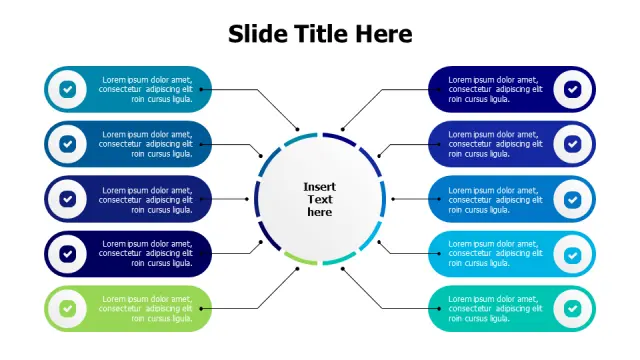
10-Point Circular Hub Infographic Layout
Free PowerPoint + Google Slides 585+ downloads

Pick this one when you need to compare or introduce ten distinct topics without making the slide feel like a spreadsheet. The circular hub design signals that all ten points relate to a single core idea — useful for strategic frameworks, capability overviews, or product feature maps presented to executive audiences.

Each numbered segment is independently editable, so you can swap fill colors via the Format Shape pane to match department or priority coding. The radial symmetry keeps visual weight balanced even when text lengths vary across segments.
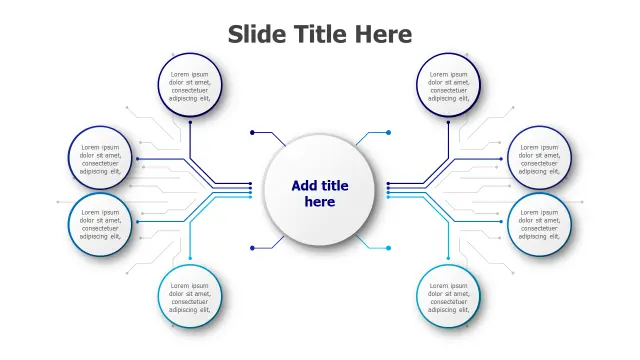
Central Hub 8-Point Branching Diagram
Free PowerPoint + Google Slides 453+ downloads

Eight connected nodes around a central hub works well for organizational charts, ecosystem maps, or any situation where a single concept branches into exactly eight supporting elements. Business strategists frequently use this layout to show how a central value proposition connects to distinct business units or customer segments.

The symmetric node placement means every branch gets equal visual emphasis — helpful when you deliberately don't want to imply hierarchy among the eight elements.

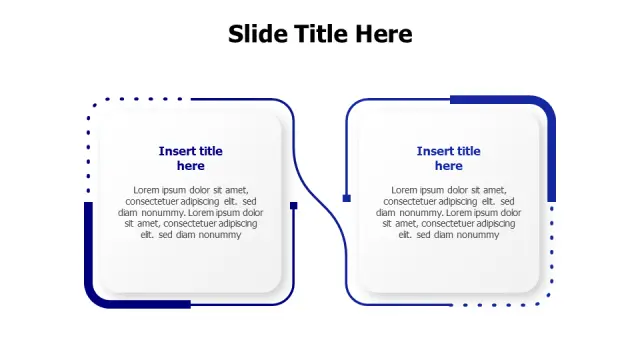
Dual Box Technology Comparison Layout
Free PowerPoint + Google Slides 441+ downloads

The dual-box layout suits technology evaluations and solution comparisons where you need more than a few bullet points per side — the ample text containers handle detailed spec comparisons without crowding. Dotted connecting lines between boxes subtly imply a relationship rather than a competition, which works well for integration or migration scenarios.

Use this when your audience is technical and needs to read actual detail on the slide, not just absorb a visual summary.

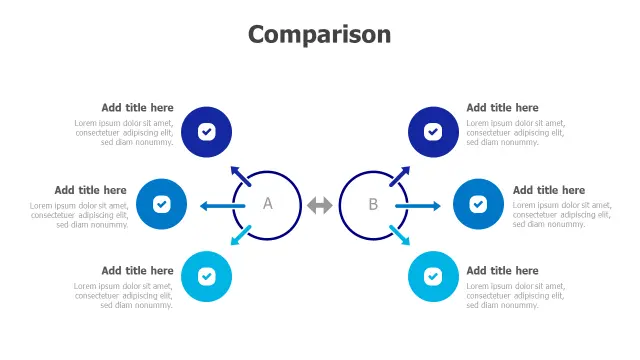
Six Point Circular Comparison Infographic
Free PowerPoint + Google Slides 421+ downloads

This is the go-to layout for a classic A-vs-B comparison where each side has three supporting points. The checkmark icons already signal a pros-style evaluation, making it ideal for product comparison slides, vendor shortlisting, or strategy option reviews where stakeholders need a clear visual verdict.

The two central circles labeled A and B anchor the reader immediately. Swap the checkmark icons via the Insert Icon tool if you need neutral symbols rather than approval-coded ones.

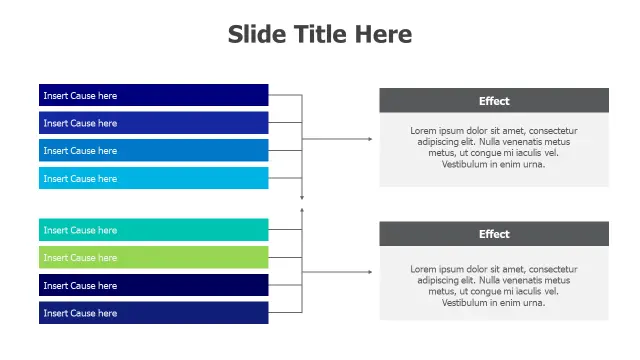
Cause Effect Analysis Fishbone Diagram
Free PowerPoint + Google Slides 256+ downloads

A fishbone (Ishikawa) diagram is the right choice when you're not comparing two options but instead tracing multiple causes back to one or two effects — think quality defect analysis, project failure reviews, or process improvement workshops. The eight colored cause boxes give each contributing factor its own visual lane.

Business analysts and project managers running retrospectives will find this immediately familiar. The two-effect section makes it possible to map causes against both a primary and secondary outcome simultaneously.

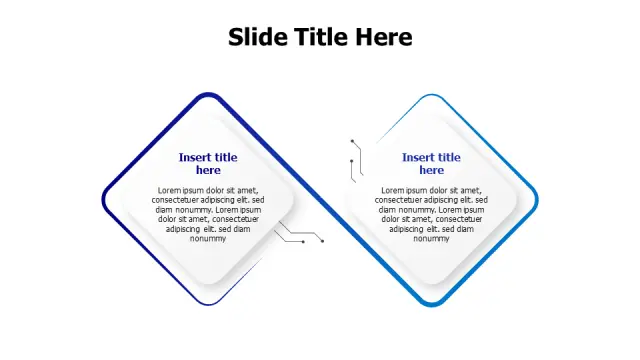
Two Point Diamond Shape Comparison Layout
Free PowerPoint + Google Slides 141+ downloads

Diamond shapes read as distinct and deliberate — this template works best for before-and-after scenarios, problem-vs-solution pairs, or contrasting philosophies where you want the visual language to feel more polished than a plain two-column layout. The connecting arrows between diamonds reinforce causality or progression.

Dedicated title and body text areas inside each diamond keep content structured even on a busy slide master. A clean fit for pitch decks and executive briefings.

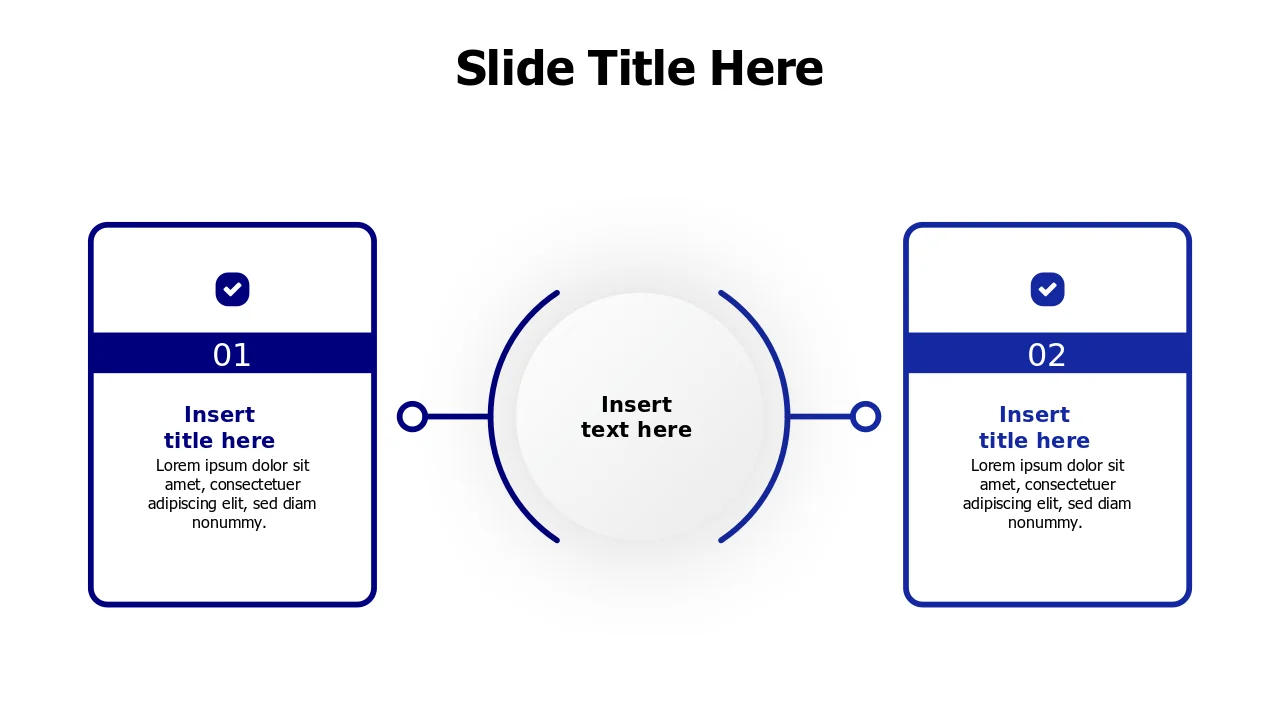
Two Step Process Connected Boxes Layout
Free PowerPoint + Google Slides 132+ downloads

Two connected boxes with a central circular element is a minimal, scannable structure for showing sequential or paired concepts — before-and-after, input-and-output, or phase-one-and-phase-two. The checkmark icons signal completion or confirmation, making this well suited to project kickoff slides or process handoff moments.

Because the layout is so uncluttered, it holds up well on slides where you're also presenting live and want the visual to stay readable from the back of the room.

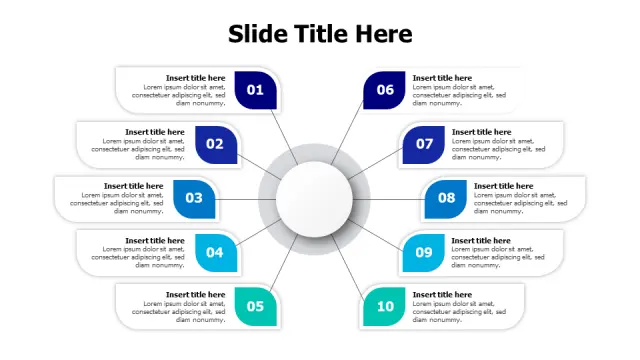
10-Point Hub Spoke Comparison Diagram
Free PowerPoint + Google Slides 131+ downloads

Ten colorful spokes radiating from a focal point suits comprehensive multi-factor analyses — competitive landscape reviews, SWOT extensions, or consulting frameworks where you need to surface ten variables at once without losing the sense that they all relate to one central theme.

Consultants and strategists who regularly build dense analysis slides will appreciate how the hub-and-spoke structure keeps ten data points visually organized. Resize individual spoke labels in the text box properties without affecting the diagram's overall symmetry.

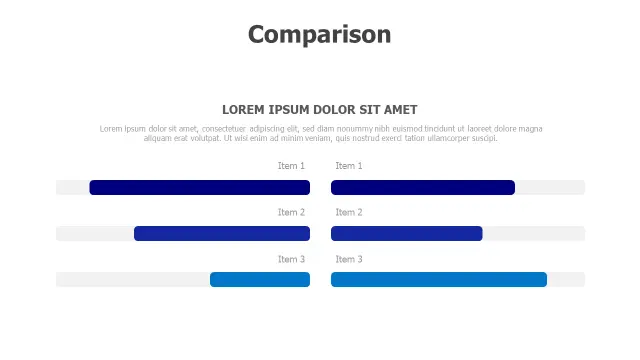
Side by Side Product Comparison Chart
Free PowerPoint + Google Slides 125+ downloads

When you need to score or rate two options across several criteria, horizontal progress bars make the comparison instantly readable — your audience grasps the relative performance of each item per row without needing a legend. This is the practical choice for product demos, vendor scorecards, and feature-by-feature evaluations.

The two-column layout maps directly to a decision matrix. Adjust bar lengths by resizing the rectangle shapes; no chart data panel needed, which keeps editing quick during live presentations.

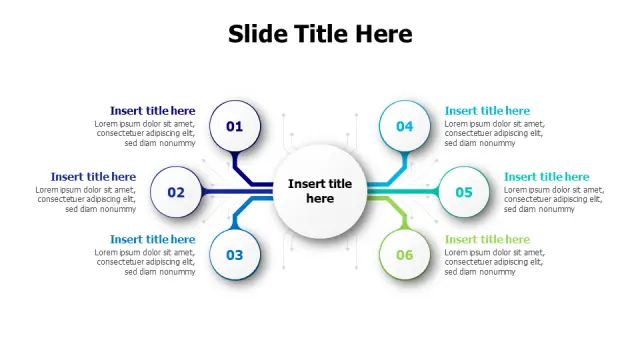
Six Branch Central Hub Process Diagram
Free PowerPoint + Google Slides 111+ downloads

Six branches from a central hub hits the sweet spot for departmental relationship diagrams, service category breakdowns, or process stage maps where six is the natural count. Color-coded connectors let you differentiate branches by team, priority, or theme without adding a separate legend slide.

The numbered circular elements help presenters guide an audience through the branches in sequence — useful when you want to narrate each branch rather than let viewers read freely.

Frequently Asked Questions

What is a comparison template in PowerPoint?

A comparison template is a pre-built slide layout designed to show two or more options side by side — using columns, shapes, charts, or diagrams — so audiences can evaluate differences quickly without reading dense text.

How do I make a comparison slide in PowerPoint?

Use a two-column layout from the slide layout panel, or insert a table or SmartArt graphic via the Insert ribbon. For visual impact, pre-designed comparison templates save time and produce more polished results than building from scratch.

What type of diagram is best for comparing two options?

Side-by-side column layouts or dual-box templates work best for two-option comparisons. For feature-by-feature scoring, horizontal progress bar charts give the clearest visual signal of relative performance across multiple criteria.

Can I use a hub-and-spoke diagram for comparison presentations?

Yes — hub-and-spoke diagrams work well when one central concept connects to multiple comparable elements, such as comparing departments, services, or contributing factors, though they suit multi-point analysis better than a strict A-vs-B format.

How many comparison points fit on a single PowerPoint slide?

Two to six comparison points is the readable range for most slide sizes. Beyond six, consider a hub-and-spoke or circular diagram, which can handle up to ten points while keeping the layout visually organized at standard 16:9 dimensions.

Looking for more Comparison templates?

Browse the full library of Comparison PowerPoint and Google Slides templates — fully editable, free to download.

Browse all Comparison templates