Top 10 · Multipurpose

Top 10 Multipurpose PowerPoint Templates (2026)

Multipurpose PowerPoint templates are the workhorses of any presentation library — flexible enough to cover agendas, process flows, feature breakdowns, and comparisons without forcing you to rebuild a slide from scratch every time. The best ones ship with placeholder text boxes already sized for readability, consistent color themes you can swap via the Design tab, and layouts that scale from a five-minute team update to a 40-slide client deck.

This list ranks the 10 most-downloaded multipurpose templates on PPT-Design, so every pick has already proven useful to real presenters. You'll find circular hub diagrams for showing interconnected ideas, vertical list layouts for structured agendas, 3D stacked banners for sequential milestones, and a side-by-side comparison layout for product evaluations. Whether you're in marketing, operations, or consulting, at least three of these will slot straight into your next deck.

When choosing, prioritize slide count versus your actual content volume, check that the color scheme matches your brand guidelines (or is easy to recolor in Format Shape), and confirm the font choices are available on your machine to avoid substitution issues on shared files.

Free download Fully editable PowerPoint + Google Slides
1 2 3 4 5 6 7 8 9 10
Three Point Circle Hub Infographic
Free PowerPoint + Google Slides 2,007+ downloads

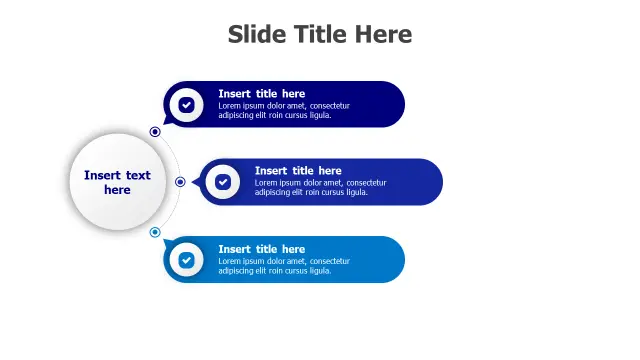
The Three Point Circle Hub Infographic is the go-to when you need to present exactly three pillars — core values, product benefits, or service tiers — without the slide feeling sparse. The central circle naturally draws the eye first, then guides viewers outward to each point, making it ideal for executive summaries or pitch deck opening slides.

Each radiating element includes a checkmark icon and an expandable text box, so you can drop in a short label or a two-sentence description depending on how dense your content is. Swap the hub fill color via Format Shape to match brand colors in under a minute.
Five Point Vertical Bar List
Free PowerPoint + Google Slides 628+ downloads

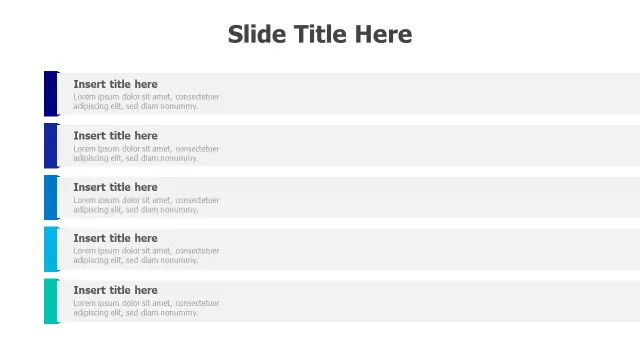
Pick the Five Point Vertical Bar List when you're presenting an agenda, a ranked feature set, or a structured policy breakdown where sequence and hierarchy matter. The colored accent bars in blue gradient tones create visual separation between sections without requiring divider slides, keeping your deck lean.

Each section has a title area and a description block, making it practical for both high-level overviews and slightly deeper content. Works especially well on widescreen (16:9) layouts where vertical real estate would otherwise go to waste.

Five Step 3D Stacked Banner Infographic
Free PowerPoint + Google Slides 601+ downloads

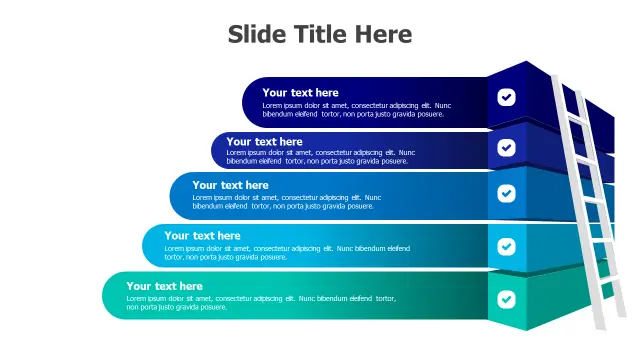
The Five Step 3D Stacked Banner Infographic earns its place when you need to communicate progression — onboarding stages, product launch phases, or achievement levels — and want the slide to feel dynamic rather than flat. The layered 3D effect communicates 'building on top of each other' without you needing to explain it verbally.

Gradient blue-to-teal colors give it a modern tech feel out of the box. Checkmark icons on each banner reinforce completion or compliance themes, making it a strong fit for project status updates or compliance training decks.

4-Step Curved Path Checklist Infographic
Free PowerPoint + Google Slides 533+ downloads

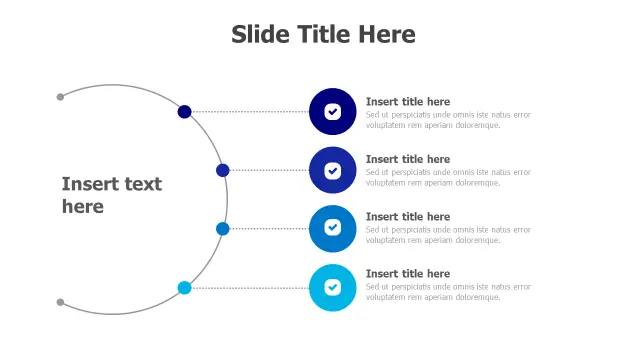
The 4-Step Curved Path Checklist Infographic is best suited for process flows where the journey matters as much as the destination — customer onboarding, approval workflows, or four-stage strategic plans. The flowing arc design visually connects steps in a way that a standard numbered list cannot, signaling continuity rather than discrete tasks.

Four steps is the sweet spot for this layout; it keeps the arc proportional and the text areas readable. The blue color scheme is professional enough for client-facing presentations without needing any modification.

10-Point Circular Hub Infographic Layout
Free PowerPoint + Google Slides 506+ downloads

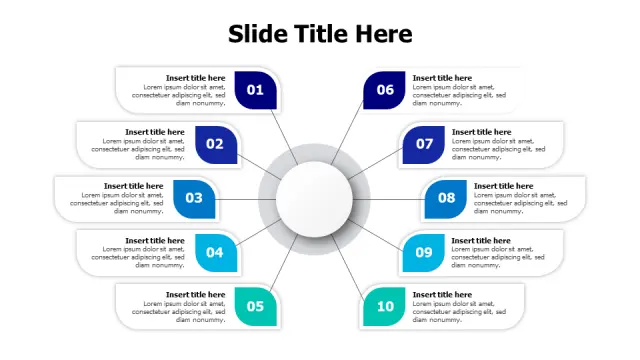
When you have ten distinct topics to cover — service offerings, market segments, quarterly priorities — the 10-Point Circular Hub Infographic Layout prevents the slide from collapsing into a wall of bullets. Numbered segments radiating from a central core let audiences scan all ten points at once while understanding they connect to a single theme.

This template works particularly well as a 'table of contents' slide at the start of a long deck, where clicking a segment can later be linked via Insert > Action to jump to the corresponding section.

Three Section Curved Bridge Layout
Free PowerPoint + Google Slides 437+ downloads

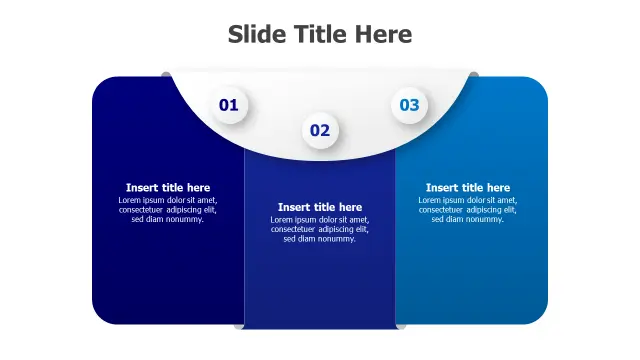
The Three Section Curved Bridge Layout is the right pick for presenting three connected phases where flow and transition are the story — think strategy-to-execution, problem-solution-outcome, or past-present-future narratives. The curved bridge shape implies movement in a way that static boxes simply don't.

Numbered circular elements (01, 02, 03) give it a polished, editorial look that suits consulting decks and strategy presentations. Because the sections are visually linked, it's harder for audiences to mentally isolate one phase and ignore the others — useful when your argument depends on the full sequence.

Three Step Checkmark Banner Infographic
Free PowerPoint + Google Slides 411+ downloads

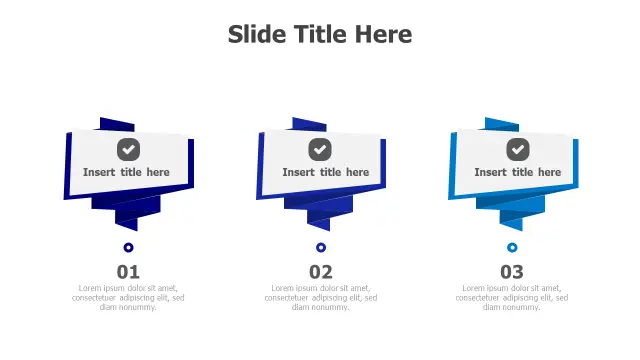
The Three Step Checkmark Banner Infographic is a compact, no-fuss option for presenting a three-milestone project update, a three-step how-to, or a three-phase rollout plan. Banner-style cards carry a sense of achievement, making them especially effective for 'what we accomplished' slides in stakeholder reviews.

Numbered progression from 01 to 03 keeps the sequence unambiguous. It's a tight layout that prints cleanly for handouts, which is worth noting if your presentations often end up as PDF leave-behinds.

4-Step Progressive Growth Infographic Layout
Free PowerPoint + Google Slides 408+ downloads

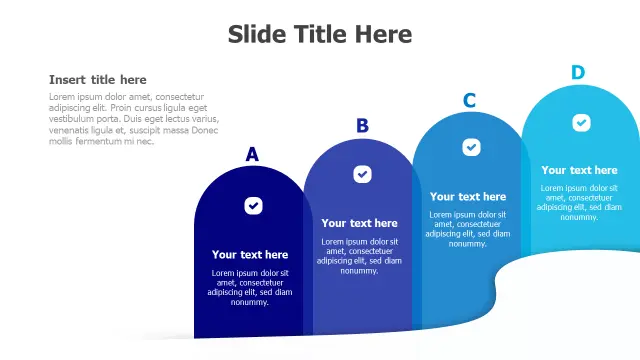
Use the 4-Step Progressive Growth Infographic Layout any time the message is literally about growth or escalation — revenue stages, skill maturity levels, or product roadmap tiers. The overlapping rounded sections that increase in size do the storytelling work for you, so you spend less time on verbal explanation.

The gradient blue scheme keeps it cohesive even when section sizes differ. It's also one of the cleaner options for adding Appear animations per section via the Animations tab, letting you build the story step by step during a live presentation.

Central Hub Three Branch Diagram
Free PowerPoint + Google Slides 407+ downloads

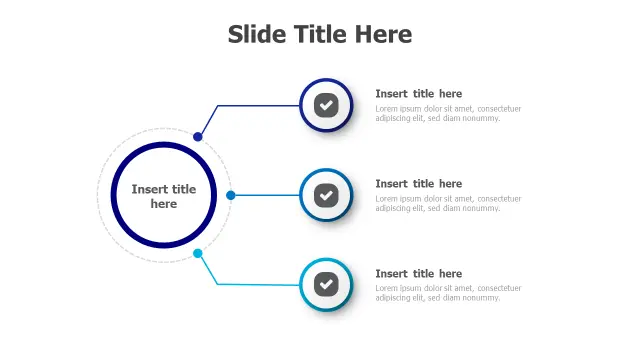
The Central Hub Three Branch Diagram is functionally similar to the top-ranked three-point hub but takes a branching rather than radiating visual approach, which works better when the relationship between the hub and each branch is hierarchical rather than equal. Think one core service that breaks into three delivery methods, or one problem with three root causes.

The clean circular branching style keeps the slide uncluttered even when text boxes are filled to capacity. Checkmark icons make it double as a validation or sign-off layout for approval workflows.

Dual Box Technology Comparison Layout
Free PowerPoint + Google Slides 407+ downloads

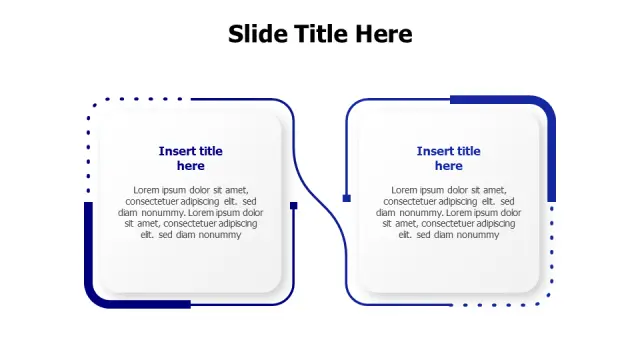
The Dual Box Technology Comparison Layout is built for one specific job: placing two options side by side so an audience can evaluate them fairly. Software vendors, platform migrations, build-vs-buy decisions — any scenario where you need to kill the 'which is better?' question on a single slide benefits from this structure.

Dotted connecting lines between the two containers imply a relationship rather than competition, which softens the tone for internal recommendations. Ample text space means you can go beyond headline labels and include actual spec-level detail without the layout breaking.

Frequently Asked Questions

What makes a PowerPoint template truly multipurpose?

A multipurpose template uses neutral color schemes, flexible placeholder layouts, and design elements — like hubs, lists, or banners — that adapt to different content types without requiring structural redesign. The fewer niche assumptions it makes, the more reusable it is.

Can I change the colors in these multipurpose templates to match my brand?

Yes. Select any shape, go to Format Shape in the ribbon, and update the fill color. For global changes, editing the Slide Master (View > Slide Master) lets you update theme colors across all layouts at once.

How many slides should a multipurpose PowerPoint template include?

For most business use cases, a single well-designed slide layout is more valuable than a bloated 50-slide pack you'll never fully use. Pick layouts that match your actual content structure rather than optimizing for slide count.

Are these templates compatible with Google Slides?

Most PPTX templates open in Google Slides via File > Import Slides, but 3D effects, certain animations, and custom fonts may not render identically. For best results, present directly in PowerPoint.

Which multipurpose template layout works best for a five-minute presentation?

Hub diagrams and three-to-four-step layouts are ideal for short presentations because they consolidate information onto fewer slides. The Three Point Circle Hub or 4-Step Curved Path templates both communicate a complete idea on a single slide.

Looking for more Multipurpose templates?

Browse the full library of Multipurpose PowerPoint and Google Slides templates — fully editable, free to download.

Browse all Multipurpose templates