
Step-by-Step Guide: Exploring Text Case Options
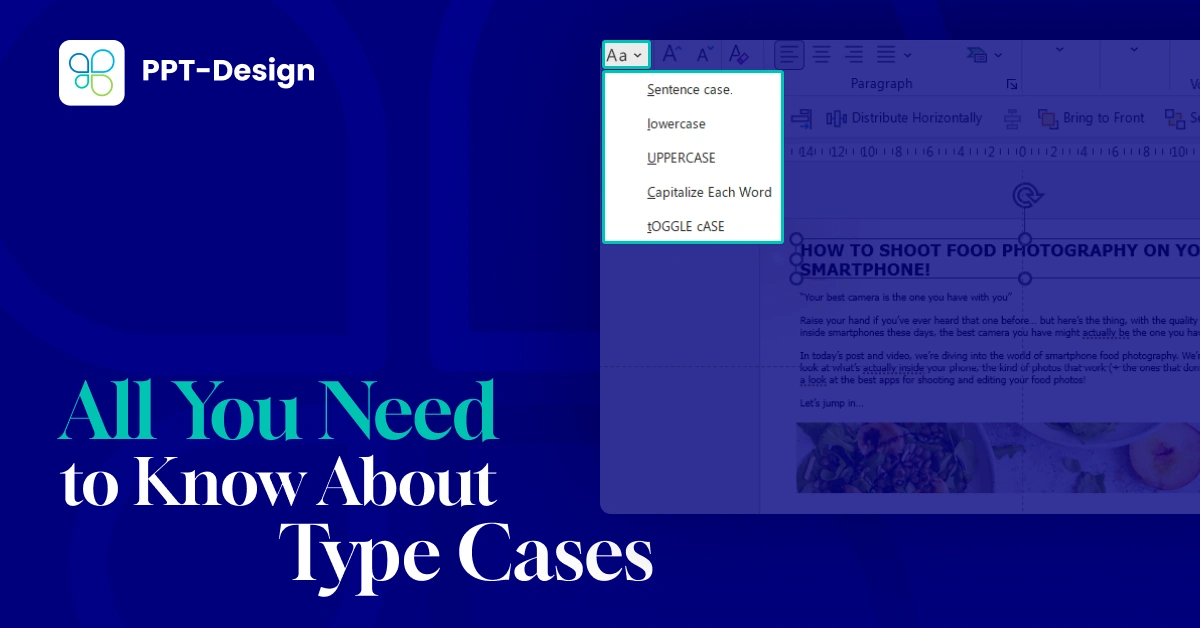
01. Sentence Case
- Formats your text so only the first word of each sentence is capitalized.
- Useful for body text and professional reports.


02. Lowercase
- Converts all letters to lowercase.
- Great for minimalist design styles or subtle captions.

03. Uppercase
- Changes all letters to uppercase.
- Perfect for headings, titles, or emphasis.

04. Capitalize Each Word
- Capitalizes the first letter of every word.
- Ideal for slide titles or section headers.

05. Toggle Case
- Switches the case of each letter (uppercase becomes lowercase and vice versa).
- Handy for quick corrections when text is typed in the wrong case.

Advanced Formatting Options
If you want more than just case changes, PowerPoint provides additional features:
1. Strike Through:
Adds a line through your text, often used to show revisions or outdated information.

2. Double Strikethrough:
Applies two lines through the text for stronger emphasis.

3. Superscript:
Raises text slightly above the baseline, useful for mathematical notations or footnotes.

4. Subscript:
Lowers text below the baseline, often used in chemical formulas or technical references.

5. Small Caps:
Converts lowercase letters into smaller uppercase letters, creating a refined, professional look.

6. All Caps (Permanent):
Unlike the quick case options, this permanently changes your text box to display all caps.

- To access these options, simply click the small arrow in the Font section of the toolbar.
- This opens the advanced font formatting window where you can apply these effects directly.
Why This Matters
Mastering text formatting in PowerPoint helps you:
- ✅ Improve readability and audience engagement
- ✅ Reinforce your brand’s visual identity
- ✅ Present technical or professional information with precision
- ✅ Add stylistic variety without cluttering your slides
Conclusion
PowerPoint’s text formatting tools give you more control than you might expect. By combining case options with advanced effects like superscript, subscript, and small caps, you can create presentations that are not only visually appealing but also tailored to your audience and content.
If you want a tailored and customized template just for your brand with your fonts and colors,
visit PPT-DESIGN to explore professional templates and design solutions.