
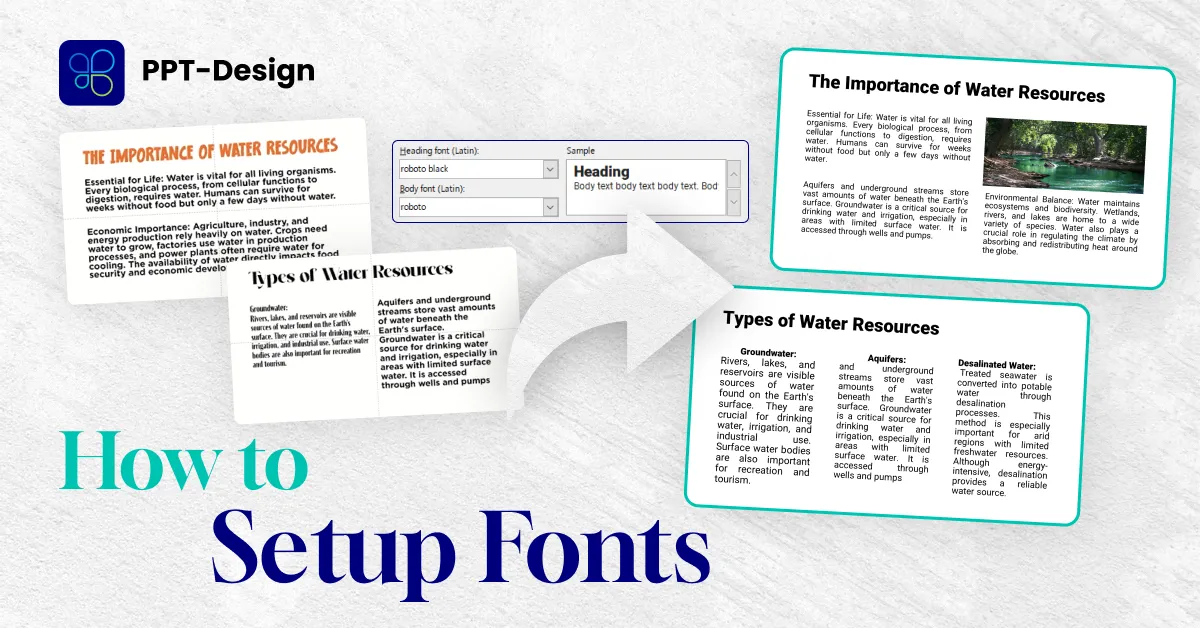
Step-by-Step Guide:
Setting Up Fonts in Slide Master
01. Open the Slide Master
- Go to the top menu and select View > Slide Master.
- This opens the master layout that controls the design of all slides in your presentation.

02. Customize Fonts
- In the Slide Master tab, click Fonts > Customize Fonts.
- A dialog box will appear where you can define your font choices.

03. Choose Heading and Body Fonts
- Select a Heading Font for titles and a Body Font for content text.
- Pick fonts that are professional, easy to read, and aligned with your brand.

04. Save Your Theme Font
- Give your customized font set a name under Theme Font.
- Once saved, you can apply this font theme to other presentations for consistency.


Why This Matters:
By setting up fonts (and colors) in the Slide Master, you:
- ✅ Save time by avoiding manual formatting on each slide
- ✅ Ensure brand consistency across all presentations
- ✅ Create a polished, professional look that impresses your audience
Conclusion
A well-designed presentation isn’t just about great content — it’s about visual consistency. Using PowerPoint’s Slide Master to customize fonts and colors ensures your slides look cohesive, professional, and on-brand every time.