
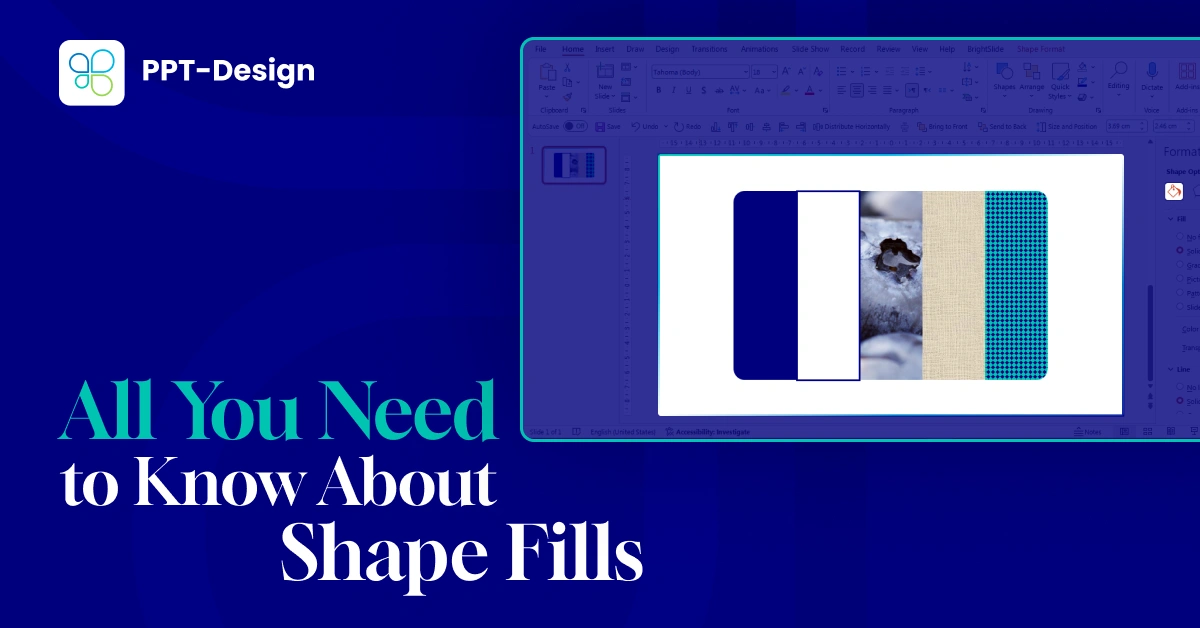
Step-by-Step Guide: Exploring Shape Fill Options
01. Solid Fill Color
- From the Home tab, click on Shape Fill.
- Choose any solid color from your palette to instantly fill your shape.
- This is the simplest way to apply brand colors or highlight specific elements.

02. No Fill
- Select No Fill if you want your shape to be transparent.
- This is useful for overlays, frames, or when you want the background to show through.

03. Custom Colors
- Click on More Fill Colors to access advanced options.
- You can type in a specific color code (HEX or RGB) or manually select from the color wheel.
- This ensures precise alignment with your brand guidelines.

04. Eyedropper Tool
- Use the Eyedropper to pick any color directly from your slide.
- Hover over the desired area and click to apply the color to your shape.
- Perfect for maintaining consistency with images or design elements already on the slide.

05. Picture Fill
- Select Picture Fill to insert an image into your shape.
- Options include uploading a file from your computer, choosing a stock image, inserting an online picture via URL, or using icons.
- This is a creative way to add texture, branding, or visual storytelling to your slides.

06. Texture Fill
- PowerPoint’s library includes a variety of built-in textures such as fabric, wood, or stone.
- Applying a texture fill can add depth and dimension to your shapes, making them more visually interesting.

For more customization, right-click your shape and select Format Shape. Then click on the paint bucket icon to open the fill menu. Here you’ll find all the options again, plus advanced settings like gradients and patterns.
Advanced Options: Format Shape Menu

07. Gradient Fill
- Choose from gradient types such as Linear, Radial, Rectangular, or Path.
- Customize by selecting gradient stops (nodes) and assigning colors, adjusting their position, transparency, and brightness.
- Gradients are excellent for creating modern, dynamic designs that add depth to your slides.

08. Pattern Fill
- Select from PowerPoint’s built-in pattern libary.
- You can adjust both the pattern color and the background color for full customization.
- Patterns are useful for subtle textures or when you want to differentiate sections of your presentation.

Why This Matters
By mastering shape fills in PowerPoint, you can:
- ✅ Reinforce your brand identity with consistent colors and styles
- ✅ Add visual depth and creativity to your slides
- ✅ Highlight important content with overlays and gradients
- ✅ Save time by using built-in tools instead of external design software
Conclusion
If you want an editable template with filled shapes customized to match your branding style and ready to use,visit PPT-DESIGN to explore professional templates and design solutions.