
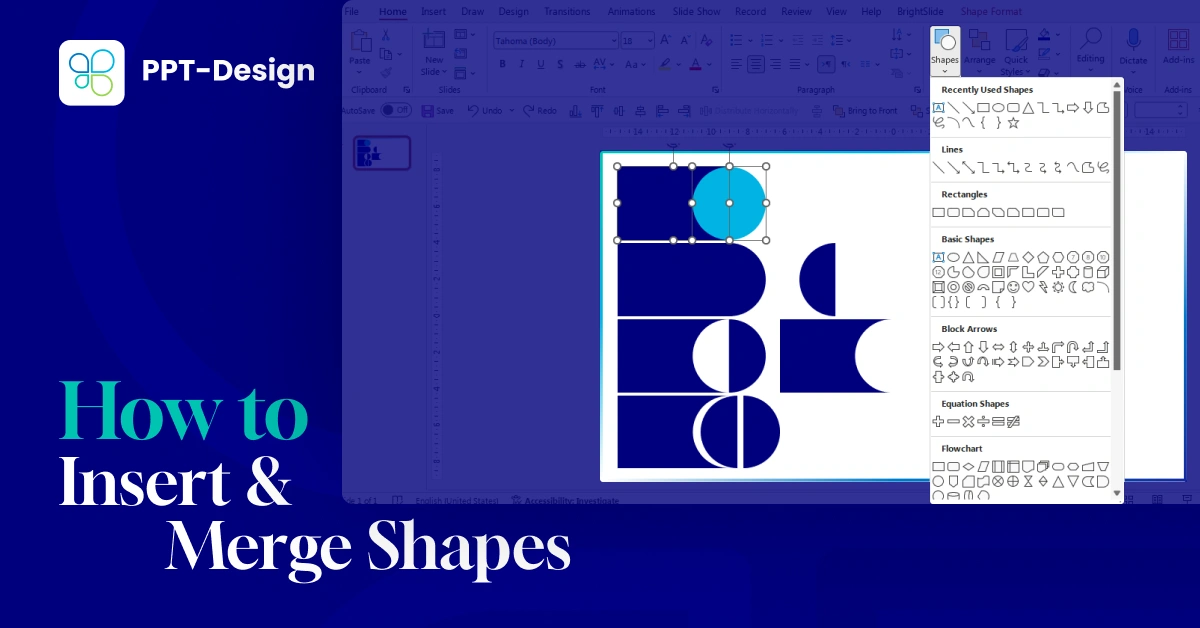
Step-by-Step Guide: Inserting Shapes in PowerPoint
01. Using the Home Tab
- Go to the Home tab and click on Shapes.
- Select the shape you want, then click and drag on the slide to draw it.
- This method is quick and convenient when you’re already working in the main editing view.

02. Using the Insert Tab
- Navigate to the Insert tab and click on Shapes.
- Choose your desired shape and click and drag to draw it on the slide.
- This option is especially useful when you’re building slides from scratch and want to add multiple elements.

Advanced Options:
Merge Shapes for Custom Designs
- If the built-in shapes aren’t enough, PowerPoint allows you to combine existing shapes into new ones using the Merge Shapes feature. Here’s how it works:

Select Shapes to Merge
- Choose the first shape you want to modify, then select the second shape.
- Go to the Shape Format tab and click on Merge Shapes.
01. Union:
Combines both shapes into one unified shape.
02. Combine:
Merges the two shapes but removes any overlapping areas.

03. Fragment:
Breaks the shapes into smaller pieces based on their intersections, giving you multiple editable parts.

04. Intersect:
Keeps only the overlapping area between the two shapes.

05. Subtract:
Removes the second shape and any overlapping section from the first shape.

- Each option allows you to create unique, customized shapes that go beyond PowerPoint’s default library.
- This is especially useful for building icons, logos, or complex diagrams directly inside your presentation.
Why This Matters
By mastering shapes and the Merge Shapes tool, you can:
- ✅ Create custom graphics without relying on external design software
- ✅ Save time by building diagrams directly in PowerPoint
- ✅ Ensure your visuals match your brand identity and presentation style
- ✅ Add originality and creativity to your slides
Conclusion
Shapes are one of PowerPoint’s most versatile design features. Whether you’re inserting basic rectangles or merging multiple shapes into complex diagrams, these tools give you endless creative possibilities. With a little practice, you can transform simple slides into visually compelling presentations that capture your audience’s attention.
If you want to have a customized branded template with your complicated shapes and ready to use,
visit PPT-DESIGN to explore professional templates and design solutions tailored to your needs.