
Step-by-Step Guide:
Preparing Your PowerPoint for Sharing
01. Choose the Right Font
- Select fonts that are widely accessible and professional.
- We recommend Google Fonts, which offers a rich library of open-source fonts that are free to use and easy to share.

02. Embed Fonts in Your File
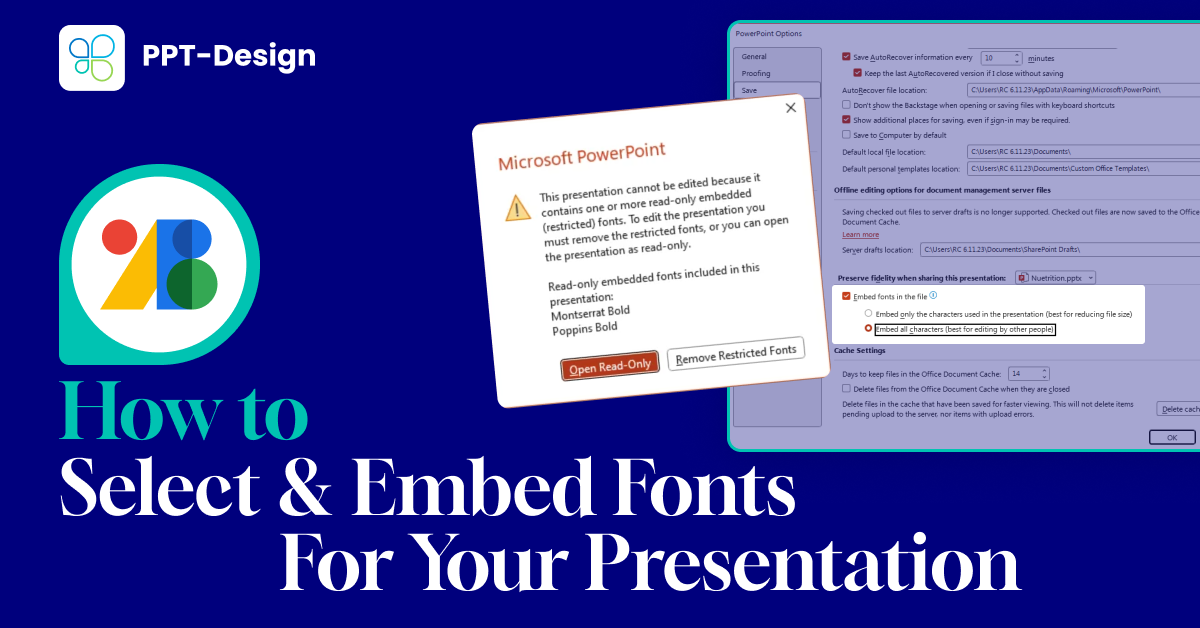
Embedding ensures that your chosen fonts travel with the presentation, preventing formatting issues. Here’s how:
a. Go to File in the top menu

b. Click More > Options

c. Click on “Save” and
check “Embed fonts in this file” and make sure to choose the the “Embed
all characters” option

Why This Matters
By embedding fonts, you:
- ✅ Avoid error messages when sharing presentations.
- ✅ Preserve your design and layout across all devices.
- ✅ Ensure your audience sees the presentation exactly as intended.
Conclusion
A polished presentation isn’t just about great visuals — it’s about reliability. By choosing accessible fonts and embedding them in your PowerPoint file, you eliminate sharing headaches and guarantee a consistent, professional experience for every viewer.